

We’ve all been there: your Wi-Fi drops two minutes before a crucial Zoom meeting, your phone screen freezes on a black display, or your laptop fans sound like a jet engine taking off while doing simple web browsing.
Before you spend hours on hold with customer support or drop money on a repair shop, try this universal step-by-step troubleshooting guide. Around 80% of everyday tech issues can be solved in under five minutes using these fundamental, battle-tested steps.
The 5-Step Universal Fix Process
Whenever a device acts up, follow this sequence in order—from simplest fix to most involved.
1. The Power Cycle (Restart Everything)
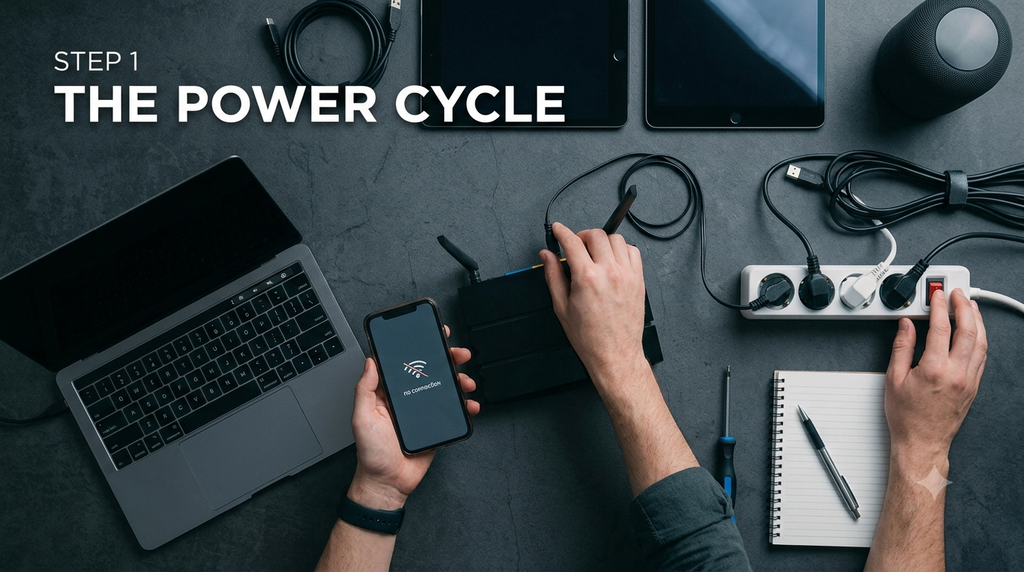
It sounds like a cliché, but “turning it off and on again” works for a legitimate technical reason. Over time, apps and operating systems accumulate temporary files, RAM leaks, and background processes that crash. Restarting clears the temporary memory (RAM) and gives your device a clean slate.
- For Phones & Laptops: Perform a full restart, not just putting the device to sleep.
- For Routers & Smart Devices: Unplug the power cable, wait 30 seconds (to allow the capacitors to drain completely), and plug it back in.
2. Check the Physical Connections
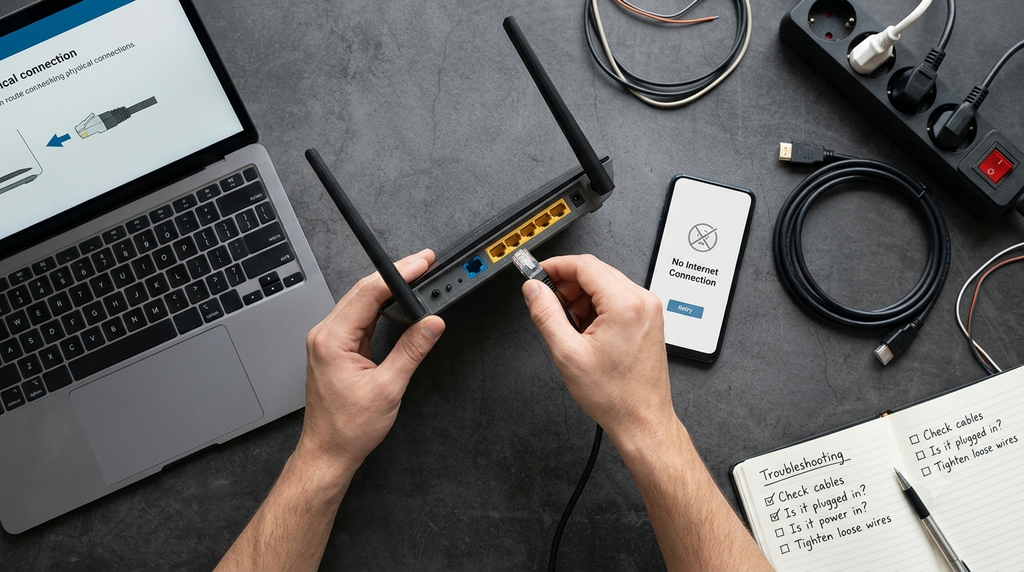
Loose cables and dust cause an astonishing number of “hardware failures.”
- Unplug and firmly re-seat HDMI, USB, and power cables.
- Check your charging ports for lint or debris using a wooden toothpick or flashlight.
- Ensure physical switches (like a laptop’s Wi-Fi toggle or mute switch) haven’t been flipped accidentally.
3. Update Your Software & Apps
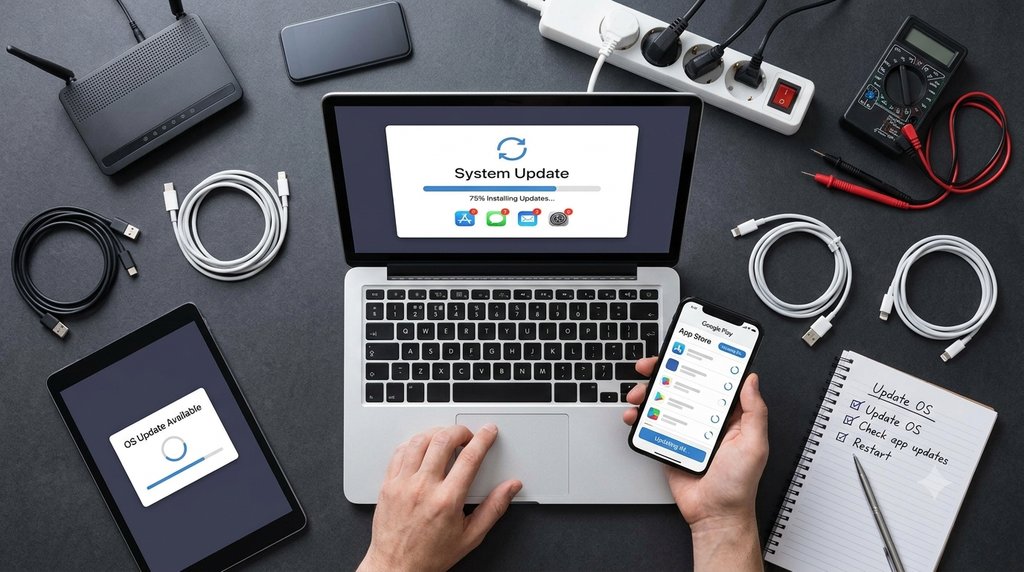
Outdated software often leads to compatibility glitches, battery drain, and random crashes.
- Check for pending Operating System updates (iOS, Android, Windows, macOS).
- Update individual apps via the App Store or Google Play Store.
- Pro Tip: If a specific app keeps crashing, uninstall it, restart your device, and reinstall it fresh.
4. Clear Cache & Storage Space
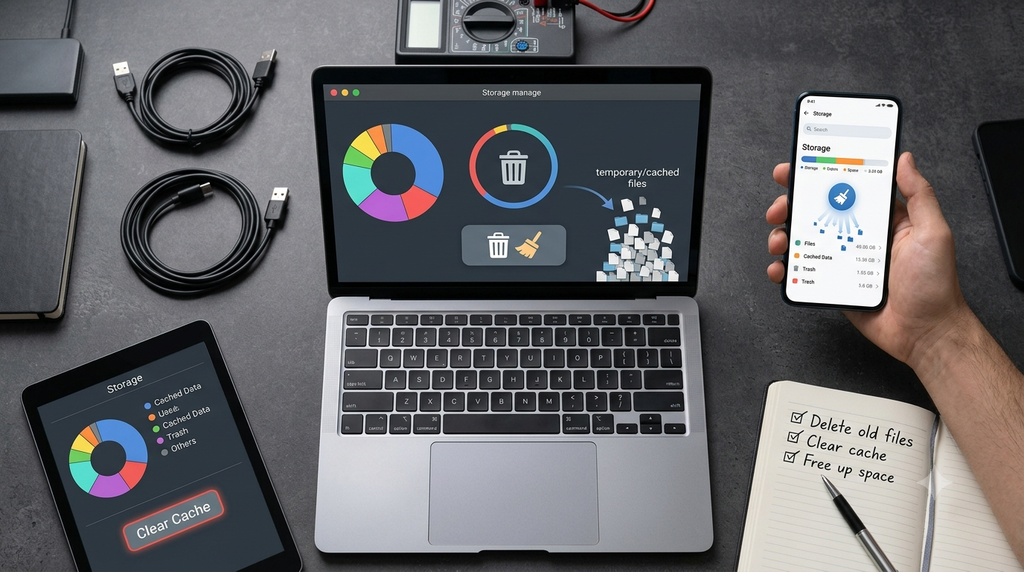
When your device runs low on storage (usually less than 10% free space), performance degrades rapidly because the system lacks room for virtual memory.
- Web Browsers: Clear your browser cache and cookies if web pages load incorrectly or freeze.
- Mobile Devices: Offload unused apps, delete large video files, and clear app caches in your device settings.
5. Check Network & Connection Settings
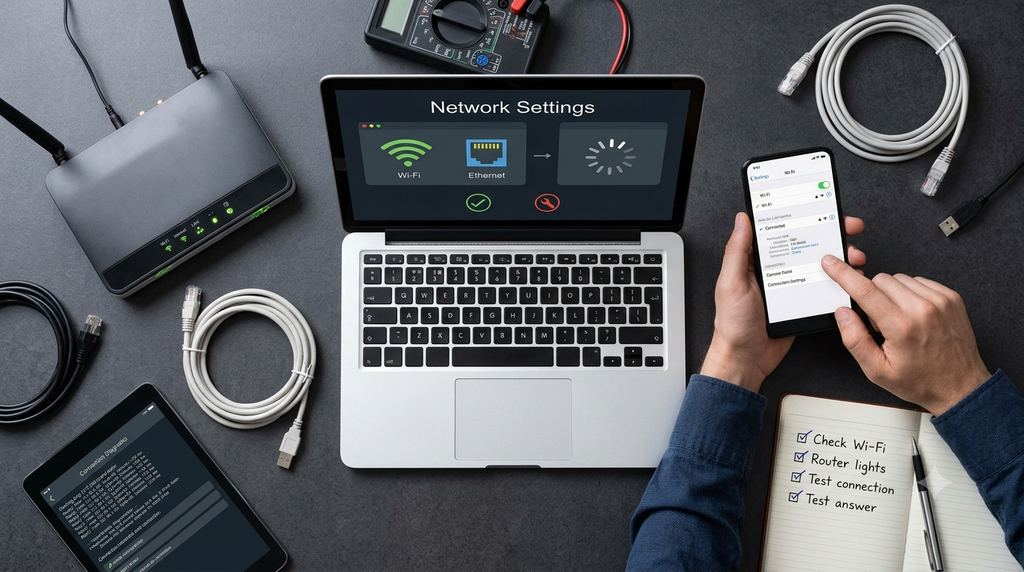
If the issue is internet- or Bluetooth-related:
- Toggle Airplane Mode: Turn Airplane Mode ON for 10 seconds, then OFF. This forces your device to reconnect to the nearest cell tower or Wi-Fi network.
- Forget & Re-pair: Unpair glitchy Bluetooth devices or choose “Forget Network” on Wi-Fi settings, then reconnect from scratch.
Quick Reference: Common Problems & Immediate Fixes
| Problem | Likely Cause | Fast Fix |
| Wi-Fi connected, but no internet | Router DNS/IP hang | Unplug router for 30s; toggle Airplane Mode on device. |
| Phone charging very slowly | Dirty port or bad cable | Clean port gently; test with a different wall adapter/cable. |
| Laptop running hot / loud fans | High CPU usage / blocked vents | Close background tabs; move laptop to a hard, flat surface. |
| App freezes instantly on open | Corrupted cache data | Force stop the app, clear cache, or reinstall it. |
When Is It Time to Call a Pro?

If you’ve completed these steps and still face issues, you may be dealing with hardware failure or deeper system corruption. Consider professional help or a factory reset if:
- Your device displays physical damage (swollen battery, cracked internal display).
- The device gets excessively hot even when turned off or idle.
- You experience repeated “Blue Screens of Death” (Windows) or Kernel Panics (Mac) that survive a full factory reset.
Bookmark this guide for the next time your tech acts up—and save yourself a trip to the repair shop!