

We live in a world where technology moves at lightning speed. Every week, a new app launches, an algorithm updates, or a groundbreaking tool enters the market. It is easy to feel overwhelmed—like you are constantly playing catch-up.
What if you could bridge a major digital skills gap in less time than it takes to watch a sitcom?
Whether you are building your personal brand, optimizing your workflow, or studying for your next big career move, mastering high-value digital skills doesn’t always require a semester-long course. Sometimes, all you need is a focused 30-minute sprint.
Today, we are looking at a blueprint to take you from absolute beginner (Zero) to confident practitioner (Hero) in one of the most in-demand digital fundamentals: Automating Repetitive Digital Tasks Using No-Code Workflows.
Why This Skill Matters Right Now
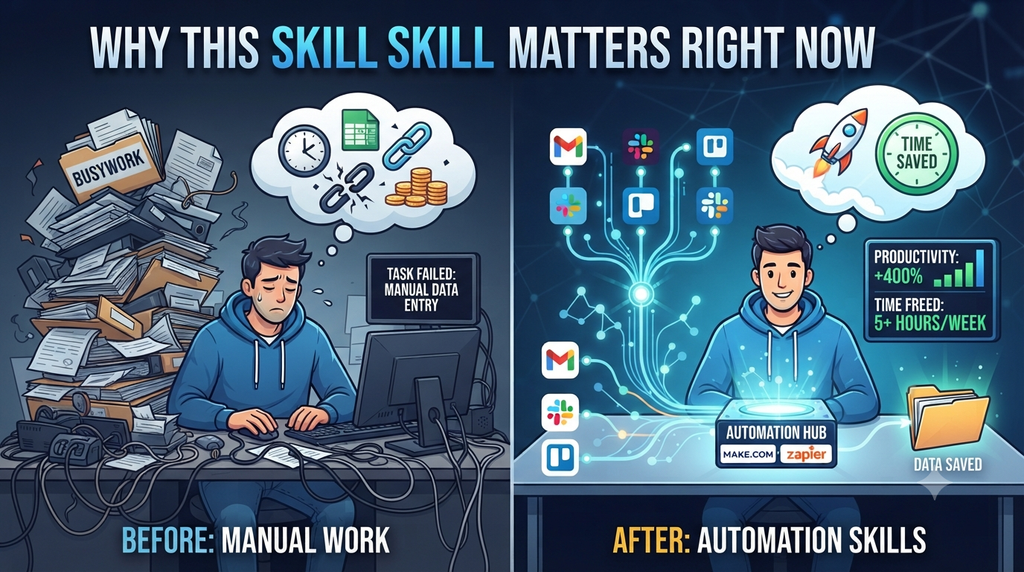
Let’s be honest: how much of your day is spent on digital busywork? Copying and pasting data between spreadsheets, manually sharing new blog posts to social media, or sorting through cluttered inboxes?
These micro-tasks drain your mental energy. By learning how to connect your favorite apps using beginner-friendly automation tools (like Make or Zapier), you free up hours of deep-focus time each week.
- Save Time: Reclaim 5+ hours every week by letting software do the heavy lifting.
- Reduce Human Error: Automated workflows don’t forget steps or misspell names.
- Boost Productivity: Shift your energy from administrative chores to creative strategy.
Your 30-Minute Action Plan
Ready to dive in? Set a timer on your phone for 30 minutes, open a fresh browser tab, and follow this step-by-step framework.
Phase 1: The Setup (Minutes 0–5)
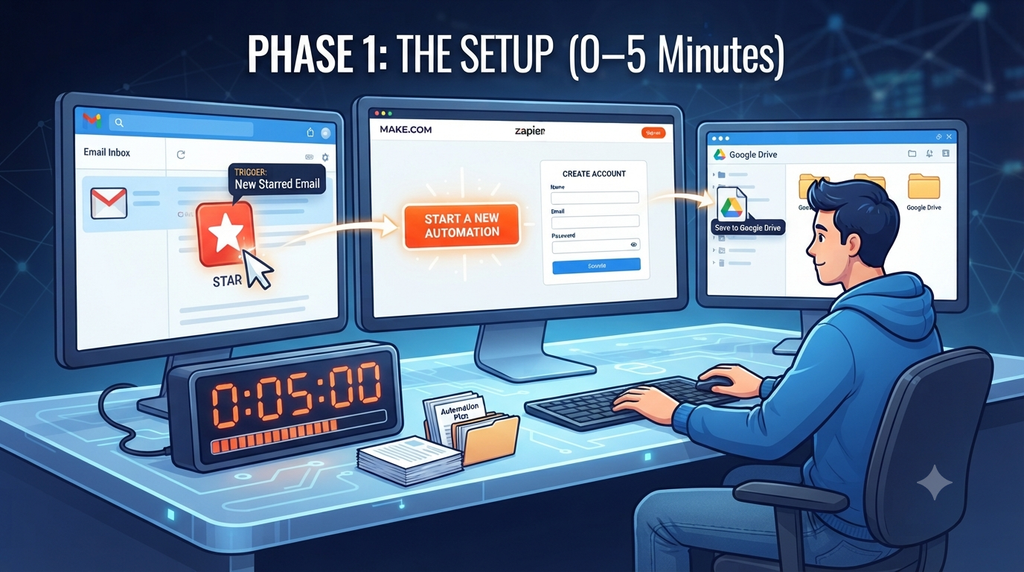
- Choose Your Tool: Head over to a beginner-friendly integration platform like Zapier or Make.com and create a free account.
- Identify ONE Pain Point: Don’t try to automate your entire digital life at once. Pick one annoying, repetitive task.
- Example: “Whenever I star an email in Gmail, automatically save the attachment to my Google Drive.”
Phase 2: The Build (Minutes 5–20)
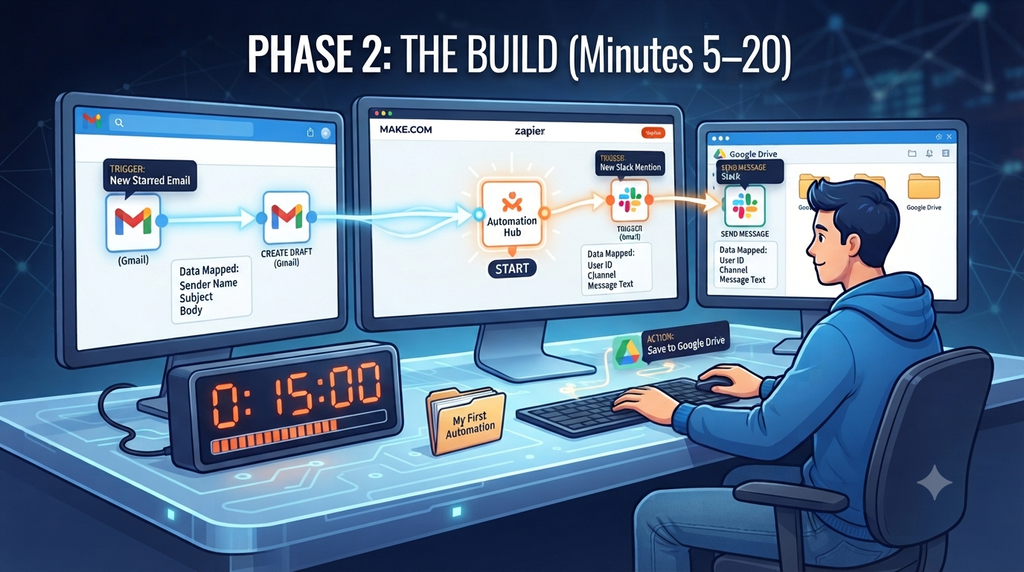
- Define the Trigger: Every automation starts with an event that kicks things off. In our example, the trigger is “New Starred Email in Gmail.” Connect your account and grant the necessary permissions.
- Define the Action: What should happen next? The action is “Upload File to Google Folder.” Select the folder you want to target.
- Map the Data: Drag and drop the data fields (like file name and attachment content) from the trigger step into the action step.
Phase 3: The Test & Launch (Minutes 20–30)
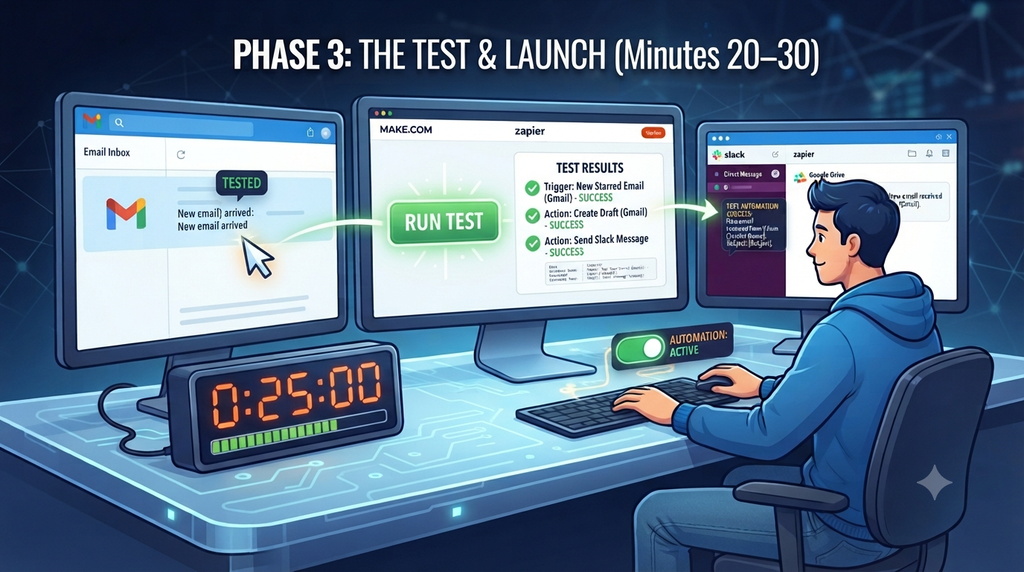
- Run a Test: Click the “Test Step” or “Run Once” button. The tool will pull a recent piece of data to verify that the connection works smoothly.
- Troubleshoot (If Needed): If something fails, check the error message—usually, it is just a missing permission or an unselected field.
- Turn It On: Toggle your workflow from Draft/Off to Active.
Congratulations! You just built your very own automated digital assistant.
Next Steps to Keep the Momentum Going
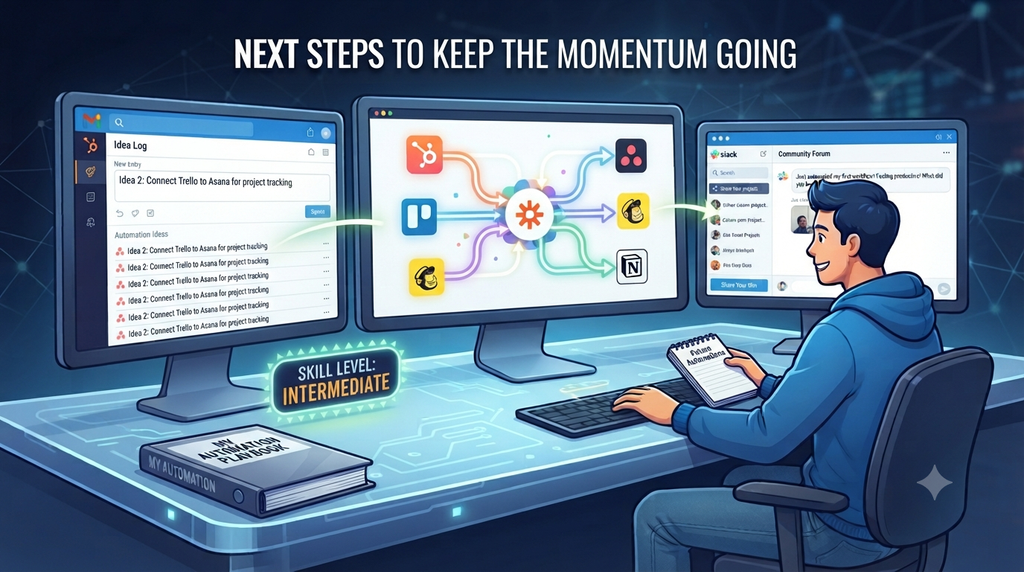
Mastering technology isn’t about knowing everything on day one; it is about building the habit of continuous, bite-sized learning.
- Experiment: Try building a second automation connecting your notes app to your task manager.
- Share Your Win: Drop a comment below or tag us on social media sharing the first workflow you built today!
What tech skill would you like to master next in under 30 minutes? Let us know in the comments below!