

We’ve all been there: staring at a piece of software we use for hours every day, only to realize years later that it had a built-in shortcut for our most annoying daily bottleneck.
Most of us only ever scratch the surface of our digital toolkits. We learn the basics to get the job done, and then we stop exploring. But beneath the familiar interfaces of the apps and devices you already rely on lie powerful, hidden features designed to save you time, streamline your workflow, and reduce daily friction.
Let’s dive into some of the best under-the-radar capabilities across everyday tools and how you can start using them right now.
1. Universal Clipboard Management (Windows & Mac)
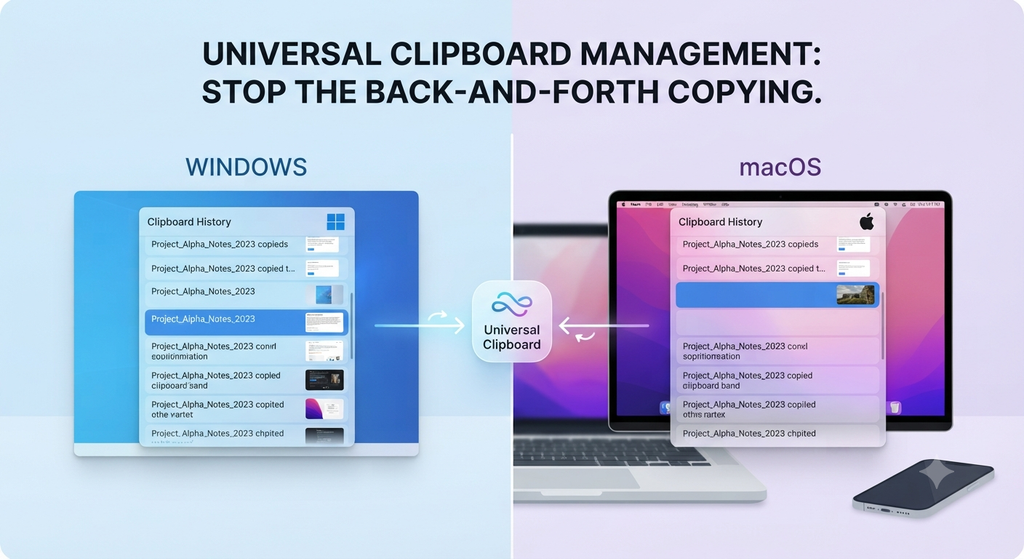
How many times a day do you copy something, copy something else, and then realize you needed the first thing?
- The Fix: Stop the back-and-forth copying.
- On Windows, press
Windows Key + Vto open your clipboard history. You can pin items you use frequently and paste from a running list of everything you’ve copied. - On Mac, enable Universal Clipboard or use a lightweight utility like Flycut or Maccy to maintain a searchable history of your clipboard.
- On Windows, press
2. Advanced Search Operators in Email and Storage
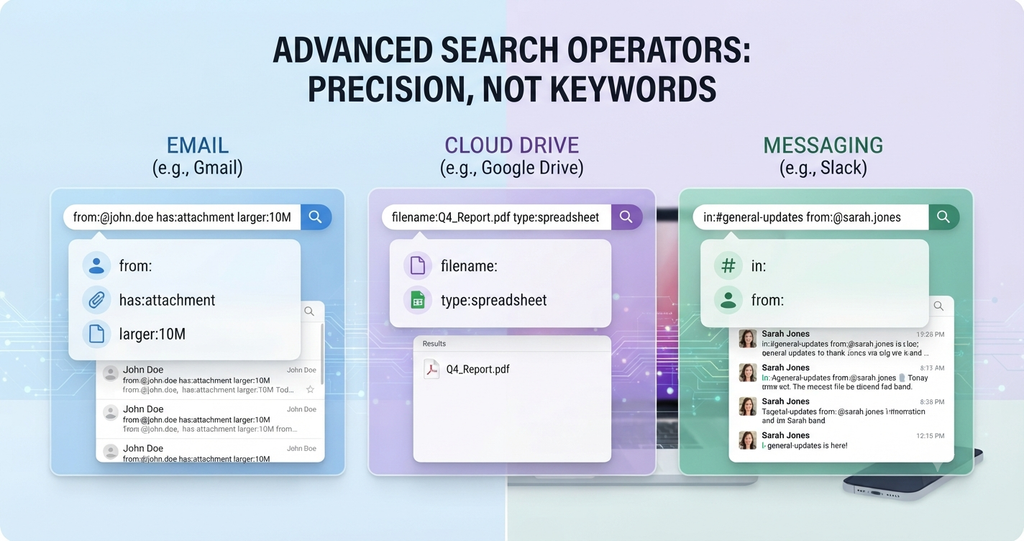
Scrolling endlessly through your inbox or cloud drive to find a specific file or conversation is a massive productivity drain.
- The Fix: Ditch simple keywords and use precision filters.
- In tools like Gmail or Google Drive, use modifiers like
has:attachment filename:pdforlarger:10Mto instantly isolate heavy files or specific documents. - In Slack, use
from:@usernameorin:#channel-nameto pinpoint exact conversations without scrolling through weeks of chat history.
- In tools like Gmail or Google Drive, use modifiers like
3. Text Expansion Shortcuts for Repetitive Typing
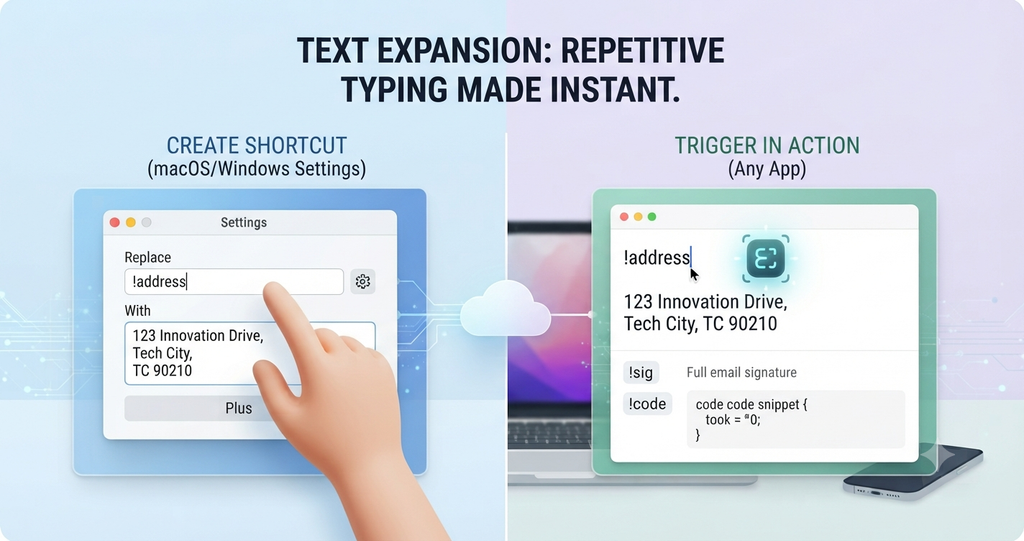
If you find yourself typing the same email responses, URLs, code snippets, or templates multiple times a day, you are wasting valuable mental energy.
- The Fix: Set up text expansion. Both macOS and Windows have native text replacement features (look under Settings > Keyboard > Text Replacements on Mac, or Typing settings on Windows).
- Example: Set
!addressto automatically expand into your full mailing address, or!introto populate a standard greeting template instantly.
- Example: Set
4. Smart Document Scanning and Text Extraction (Mobile)
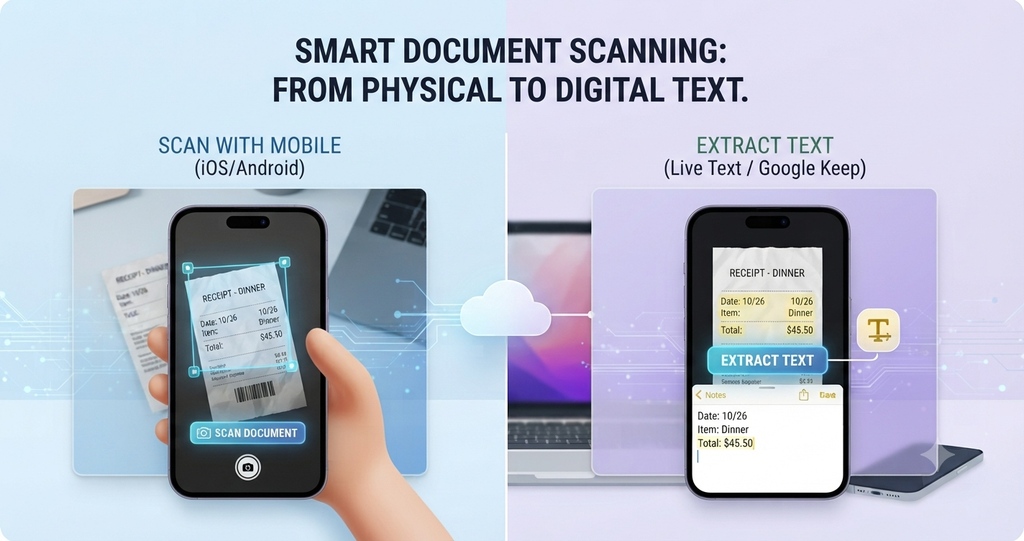
Need to turn a physical receipt, whiteboard notes, or a book page into editable digital text? You don’t need a bulky desktop scanner or a third-party app.
- The Fix: Use your smartphone’s built-in intelligence.
- Open the native Notes app on iOS or Google Keep on Android, tap the camera icon, and select Scan Documents.
- Furthermore, features like Apple’s Live Text or Android’s Screen Search let you highlight, copy, and paste text directly out of images and screenshots.
Why It Matters
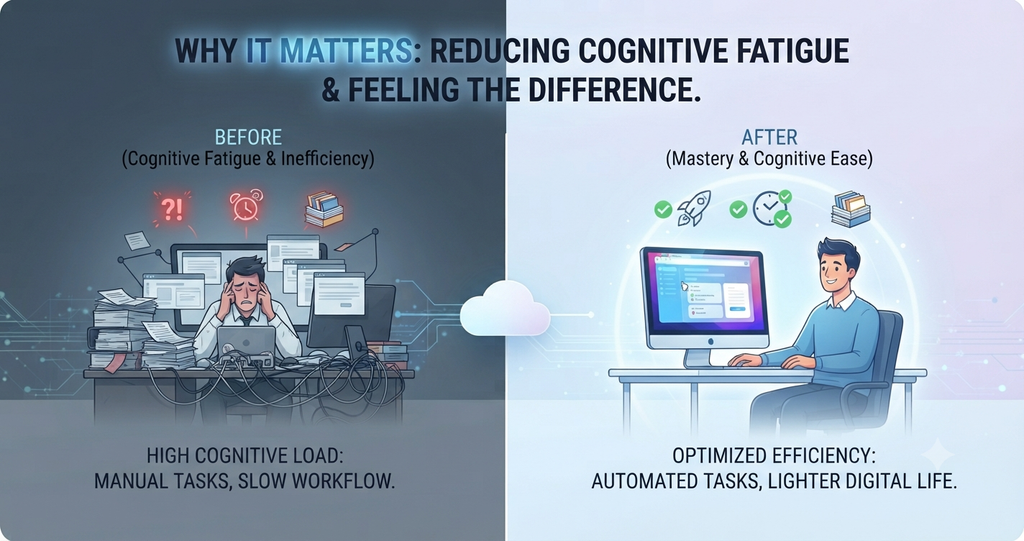
Mastering these hidden features isn’t just about saving seconds here and there—it’s about reducing cognitive fatigue. When your tools work with your workflow rather than against you, your digital life feels significantly lighter.
Pro Tip: Don’t try to adopt all of these at once. Pick one tool you use every day, find a feature you’ve been ignoring, and force yourself to use it for a week until it becomes second nature.
What About You?
What is your absolute favorite hidden feature or keyboard shortcut in an app you use every day that you feel nobody else knows about? Drop it in the comments below!